Free and open source · Cyber Essentials v3.3
Every laptop and phone, ready for Cyber Essentials.
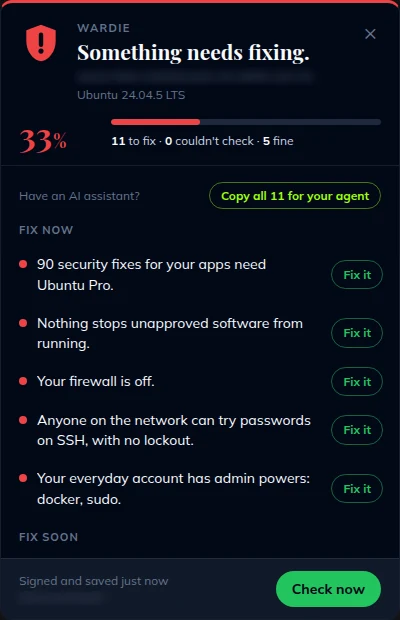
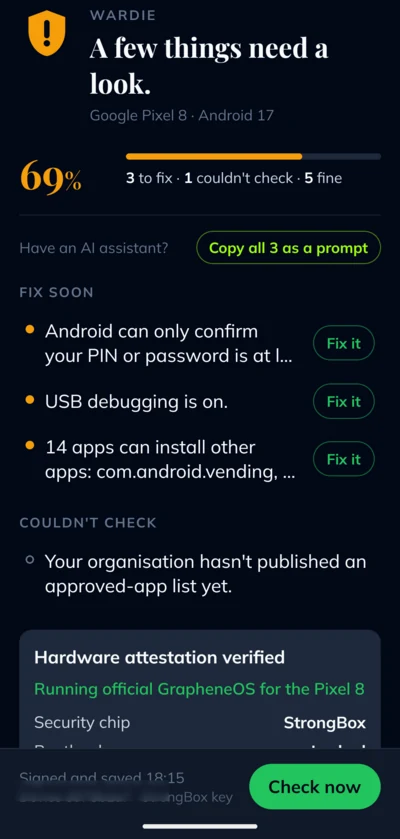
Wardie checks each device and shows a green, amber or red shield. It tells people in plain English what to fix, and keeps signed evidence for your assessor.
Linux and Android today. Windows, macOS and iOS coming.
- All good
- Fix soon
- Fix now
- AvailableLinux Ubuntu, Debian
- AvailableAndroid including GrapheneOS
- ComingWindows
- ComingmacOS
- ComingiOS
How it works
Check. Fix. Prove it.
Wardie sits in the system tray or on the phone and checks the device regularly. It never changes anything on its own.
-
The device checks itself
Updates, firewall, screen lock, admin accounts, apps installed by hand, and whether the operating system is still supported. Each check maps to a Cyber Essentials control.
-
People get plain English fixes
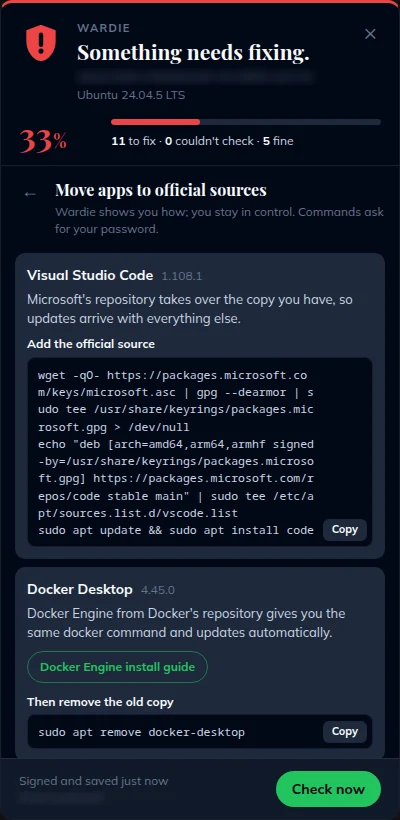
One line per problem, such as "Your firewall is off." Fix it opens the right settings page or shows the exact steps. You can also copy a finding as a ready-made prompt for your AI assistant.
-
The evidence is signed
Every report is signed with the device's own key, so nobody can quietly edit it. Sign in with Microsoft and it goes to your organisation's own SharePoint site.
See it
On the desktop and on the phone
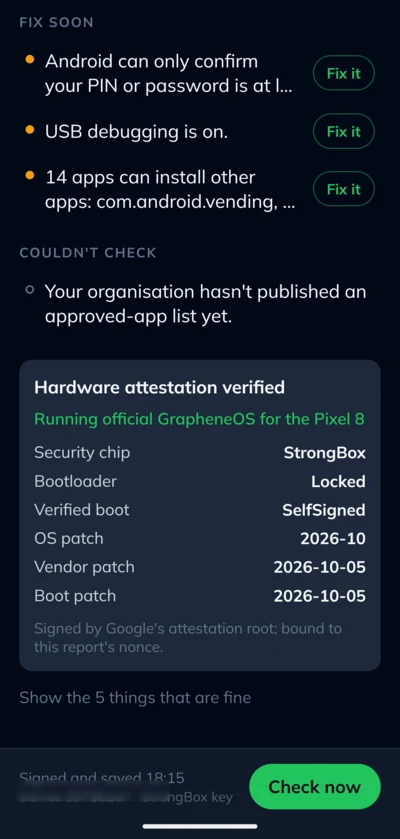
The same simple view everywhere: a score, a shield, and a short list of what to do next.

For organisations
Your whole estate, in your own Microsoft 365
People sign in with their work account. Wardie sets up a site in your SharePoint and reports there. There's no Wardie server in the middle.
-
Sign in with Microsoft
No server addresses and no enrolment codes. Each person says whether it's a company device or their own. Personal devices share less.
-
Your Wardie SharePoint site
An admin runs setup once. Wardie creates a site with three lists: device compliance, approved apps and app requests. It's yours to keep and edit.
-
The Wardie Portal
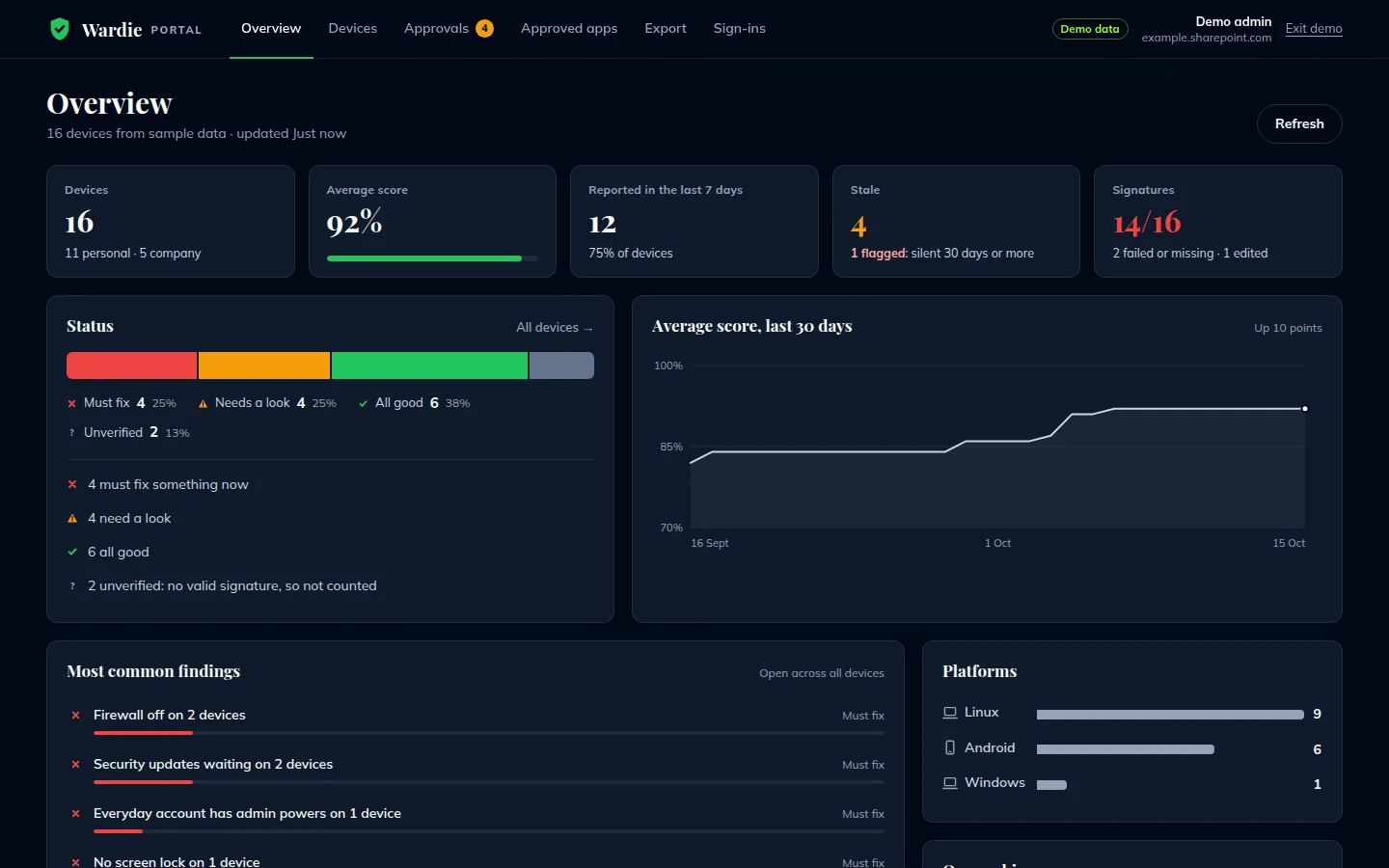
An Intune-style view of every device: status, score, what's failing, and who has stopped reporting. Export a CSV and the signed reports for your assessor.
-
Signatures checked for you
The portal checks every report's signature in your browser. A report that fails is marked Unverified and left out of the figures, so a forged "all good" never counts.
-
Approved apps and requests
Publish the apps your organisation allows. People ask for anything else, with a reason. Site owners approve or decline, and the answer shows up in Wardie.
-
Reviewers who can't change a thing
Add your assessor or auditor to the Wardie reviewers group. They can read every report and change nothing. Everyone else sees only their own devices.
Organisation sign-in is in the Linux app today, with Android to follow.
Privacy
Your data stays yours
Wardie collects only what Cyber Essentials needs, so it's safe to run on a personal phone. When you share with your organisation, it goes to your organisation's Microsoft 365. It never goes to KnowAll.
What your organisation sees
- Device make and model, operating system, version and patch level
- The score, the status and a one-line finding for each check
- Your work email, and whether it's a company or personal device
- The signed report behind each check, such as accounts on the device and apps installed by hand
What Wardie never collects
- Files, messages or browsing history
- Your location
- Serial numbers, IMEI, MAC or IP addresses
- Anything for KnowAll. Nothing comes to us.
- Read-only. Wardie never changes your settings. You decide what to fix.
- You're in control. See exactly what's sent, and stop sharing at any time. Wardie keeps working on its own.
- Check the code. It's open source, so you, or your AI assistant, can see what it collects.
- Your tenant, your control. Wardie acts only as you, never in the background. What Wardie can and can't do.
Your tenant, your control
What Wardie can and can't do in your tenant
Wardie only ever acts as the person using it, from their own browser or device, with the rights they already have. There's no KnowAll server in the middle and no background access, so KnowAll can't sign in to your tenant or read anything in it.
What Wardie can do
- Act as you, while you use it. Every permission is delegated, so it can never do more than you can. Reading the audit log, for example, also needs your own Audit Reader role in Microsoft Purview.
- Use your Wardie site. Read and write the Wardie site in your SharePoint, and no other site.
- Read more, only when an admin asks. Devices, sign-ins, licences and Azure resources are read only when an admin opens that screen and allows it.
What Wardie can't do
- Run in the background. No application permissions, no client secret, no service account.
- Send anything to KnowAll. Sign-in tokens and data go from Microsoft to your browser, and to your own SharePoint. IP addresses become countries in your browser.
- Load anyone else's code. No analytics or trackers, and a strict Content Security Policy lets the portal connect only to Microsoft and to getward.ie.
Every permission, and when it's asked for
| Permission | What it's for | When it's asked for |
|---|---|---|
User.Read |
Your name, email and photo, and your organisation's name. | When you sign in. |
Sites.Selected |
Reading and writing the Wardie site's lists: device reports, approved apps and app requests. It reaches only sites an admin has given Wardie, which is the Wardie site. | When you sign in. In the portal, Check my role asks for the same permission on your SharePoint itself, to read your role on the site. |
Device.Read.All and User.ReadBasic.All |
Coverage: the devices Microsoft Entra ID knows about, and their owners' names and emails, to see who still needs Wardie. | When an admin first opens Coverage. Needs an admin's consent. |
AuditLogsQuery-Entra.Read.All |
Sign-ins: Entra ID sign-ins in your own Microsoft 365 audit log, shown as countries. | When an admin first opens Sign-ins. Needs an admin's consent, and an audit role in Purview. |
LicenseAssignment.Read.All |
AI readiness: which Copilot licences you have, and how many. Not who has them. | When an admin first checks licences. Needs an admin's consent, and a role that can read licences, such as Global Reader. |
Azure Service Management user_impersonation |
AI readiness: Azure OpenAI and AI Foundry resources in the Azure subscriptions you can see. It lets Wardie act as you in Azure, with your Azure rights; Wardie only reads. | When an admin chooses Check Azure. |
Signing in also uses Microsoft's standard openid, profile, email and offline_access. Setting Wardie up asks an admin for Sites.FullControl.All once, to create the Wardie site and give Wardie access to it; Wardie uses it only then, and you can remove it afterwards.
- See it, and switch it off. Admins can see and remove every permission in Microsoft Entra ID, under Enterprise applications, then Wardie. Its sign-ins show in your own Entra ID sign-in logs, and its requests in Microsoft Graph activity logs if you turn them on.
- The honest part. The portal is served from getward.ie, so you're trusting the code we serve. It's open source, loads no third-party scripts, and its security policy lets it connect only to Microsoft and to getward.ie. If you'd rather not rely on us at all, host the portal yourself: it's a folder of static files.
- The Wardie Agent is different. The paid agent runs in your own Azure or Microsoft 365, under permissions you grant to your deployment of it. KnowAll's access is only what your managed-service agreement allows, and you can see and remove it.
From KnowAll AI
The Wardie Agent does the chasing for you
Wardie is free. If you'd like help running it, we'll install the Wardie Agent: an AI agent that works for your organisation, inside your own Microsoft 365.
-
Works in Microsoft Teams
Chat to it like a colleague. It can join voice and video calls for your security meetings, with its own live avatar, using KnowAll's Agent Presence.
-
Tells the right people
A message in Teams or by email when a device has a new problem, stops reporting, or runs an app you haven't approved.
-
Checks you're ready
Looks across every device and tells you how ready you are for Cyber Essentials, and what's in the way.
-
Says what to fix first
Prioritised recommendations, and help for each person to fix their own device.
-
Prepares the evidence pack
Gathers the signed reports and findings your assessor will ask for.
-
Remembers what matters
Keeps a memory of your people, devices and decisions with Reverie, so each meeting picks up where the last one left off.
You stay in charge: it recommends, people approve. Your data stays in your tenant. Pricing: get in touch.
Or email hello@knowall.ai
Cyber Essentials
Built around Cyber Essentials v3.3
Each device gets a score out of 100 for how close it is to the UK government-backed standard. Must-fix checks count double.
Firewalls
Is the firewall turned on?
Secure configuration
Screen lock, auto-login, password lockout, USB debugging and services open to the network.
Security updates
Updates installed within 14 days, and an operating system that's still supported.
User access control
Everyday accounts without admin powers.
Malware protection
Apps from approved sources only, checked against your organisation's list.
Wardie helps you get ready and gives you evidence. Certification itself comes from an IASME assessor. The rules live in one file, so you can tailor them.
Open source, MIT licence
Read every line, run your own build, or help us improve it. "Wardie" and the Wardie character are trademarks of KnowAll AI Ltd.
FAQ
Questions
Is Wardie really free?
Yes. The app, the SharePoint setup and the portal are free and open source under the MIT licence. The only paid part is the Wardie Agent, for organisations that want help running it.
Do I need Microsoft 365, or an organisation at all?
No. Wardie works on its own for one person and one device. Signing in with Microsoft adds reporting to your organisation's SharePoint site. Checks that only an organisation can act on are shown as advice and never lower your score.
Which devices does it work on?
Linux (Ubuntu and Debian, with .deb, .rpm and AppImage builds) and Android, including GrapheneOS with hardware attestation. Windows, macOS and iOS are coming.
Will Wardie change my settings?
No. Wardie only reads. Fix it opens the right settings page or shows you the steps, and you make the change.
Does KnowAll see our data?
No. Reports stay on the device, or go to your organisation's own SharePoint site. There's no Wardie server. The Wardie Agent also runs in your own Microsoft 365.
Will Wardie get us certified?
Wardie gets your devices ready and gives you signed evidence for each one. An IASME assessor carries out the certification itself.
How much is the Wardie Agent?
It depends on your organisation. Get in touch and we'll talk it through.